
Duck OS · System Architect · Guide
How to Use
Protocol Builder
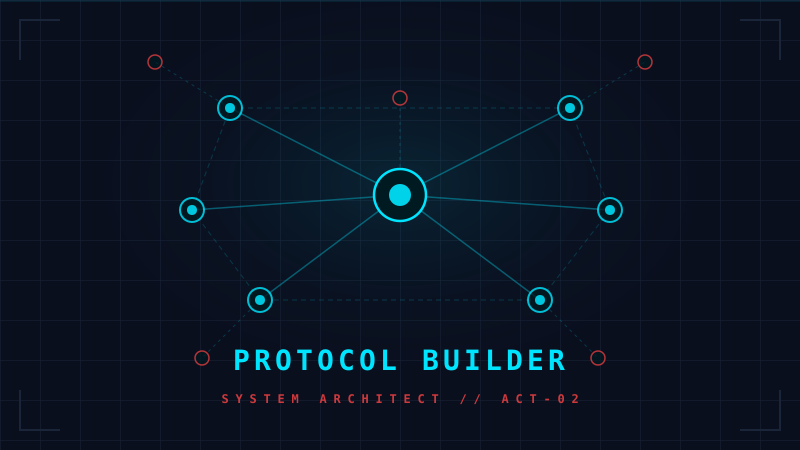
Map your daily momentum as a 3D constellation of nodes. Build the sequence once — execute it in Flow Mode with zero decision overhead. The system becomes the structure your brain cannot generate on demand.
When to Use This
What the Protocol Builder solves
Daily plan collapse
You had a plan but could not follow it. Decision fatigue, unexpected inputs, and emotional state changes derailed the sequence. A protocol removes real-time planning from the equation.
No repeatable system
Each day you figure out your workflow from scratch. Productive days happen by accident, not design. The builder lets you reverse-engineer a good day and turn it into a repeatable protocol.
Tool fragmentation
You use Ignition, Atomizer, and Emergency Recovery separately but they are not connected. The builder chains them into a single momentum arc — trigger one node and the whole system flows.
Overwhelm from planning
Trying to plan while depleted makes things worse. A pre-built constellation removes the planning overhead. You open Flow Mode and follow the path — no decisions required.
Core Concepts
Three things to understand first
Constellation Graph
Your protocol is a 3D graph of nodes floating in space. Nodes are checkpoints; edges (connections) are the momentum path between them. The visual layout is not functional — what matters is the connection order.
Build Mode vs Flow Mode
Build Mode is the architect view: add nodes, edit labels, create connections. Flow Mode is execution: one active node at a time, no sidebar, full focus. Switch with the mode toggles in the top bar.
Momentum Path
Each node can connect to one or more next nodes. Single connection: auto-advance on "Next Step →." Multiple connections: you choose which branch to follow. No connection: the node is a dead end — the protocol ends there.
Node Types
The 4 building blocks
A manual checkpoint — a physical or cognitive task you complete before moving on. Examples: "Morning stretch 5 min", "Write 3 priorities", "Review yesterday's output." You tap "Next Step →" when done.
A focused work block with a countdown. You set the duration (default: 25 min). In Flow Mode, a large monospace timer appears with "Initialize Countdown." When it hits zero, the next node auto-unlocks.
A link to another Duck OS tool — currently The Atomizer. In Flow Mode, a "Launch Atomizer" button appears. When you complete the atomizer session, it returns you automatically to the Protocol Builder at the correct node.
Triggers the 600-second Ignition sequence inside the protocol flow. Useful as the very first node when you need to break inertia before your first deep work block. After ignition completes, the next connected node activates automatically.
How to Use
Step-by-step walkthrough
Open the Protocol Builder
From the landing page, click the Protocol Builder card in the OS Tools section. You land on /protocol-builder in Build Mode with a sample constellation: Morning Ritual → Deep Work Session → Recovery Walk. These are editable — it is just a starting point.
Build Mode — your constellation
You are now in the Architect view. The dark 3D space shows your nodes as floating points connected by lines. The right sidebar is the Node Architect panel. This is where you design — not execute — your protocol.
Add and rename nodes
In the sidebar, click the + icon to add an Action node, the ⏱ icon for a Timer node, or the ⬡ icon for a Tool node. Click any node in the list to select it, then edit its Label and Type in the "Edit Properties" section below. Your changes save automatically.
Connect nodes into a Momentum Path
With a node selected, scroll to "Momentum Path" in the sidebar. Use the "Connect to..." dropdown to pick the next node, then click +. This creates a directed edge. You can add multiple connections from one node to create a branching path.
Switch to Flow Mode and execute
When your constellation is built, click "Flow" in the top bar mode switcher. Select your starting node from the list (or click it in the 3D view). The sidebar disappears. The active node panel appears top-left with "Next Step →."
Timer nodes run a countdown
When a Timer node is active, the panel shows a large monospace countdown. Tap "Initialize Countdown" to start it. When the timer hits zero, the next node unlocks automatically. You can pause mid-session with "Pause Protocol."
Branching paths — choose your direction
If the current node has multiple outgoing connections, "Next Step →" is replaced by a branch selector. Each option shows as a button. Tap the path that fits your current state. This is how you build adaptive, context-aware protocols.
Best Practices
Tips for building protocols that stick
Start with 3 nodes, not 10
The most common mistake is over-engineering the first protocol. Start with Morning Ritual → Deep Work 25 min → Recovery Walk. Run it for a week. Add complexity only when you identify a real gap.
Use the Ignite button as a protocol warm-up
The "Ignite Momentum" button in the sidebar triggers the 600-second Ignition sequence without leaving the builder. Use it as the pre-protocol activation ritual before switching to Flow Mode on high-resistance days.
Tool nodes pass context back automatically
When a Tool node (Atomizer) sends you to /atomizer, it passes a returnTo parameter. When you complete the atomization, you are returned directly to the Protocol Builder at the correct node — no manual navigation needed.
Build branching paths for energy states
Create branches for "High Energy Day" and "Low Energy Day" from a single node. In Flow Mode, choose the path that fits your current state. This makes the protocol adapt to you, not the other way around.
Everything saves automatically
Your constellation and execution state are saved to localStorage. If you close the tab mid-session and return, you will resume exactly where you left off — same active node, same mode.
Duplicate your base protocol for variants
The protocol saves to localStorage under a single key. If you want a Monday protocol vs a Friday protocol, build Monday's first, run it, then rebuild Friday's. Future versions may support named protocols.
Ready?
Stop reading.
Build your first constellation.
Start with 3 nodes. Map one real day. Run it in Flow Mode tomorrow morning.
🏗Open Protocol Builder